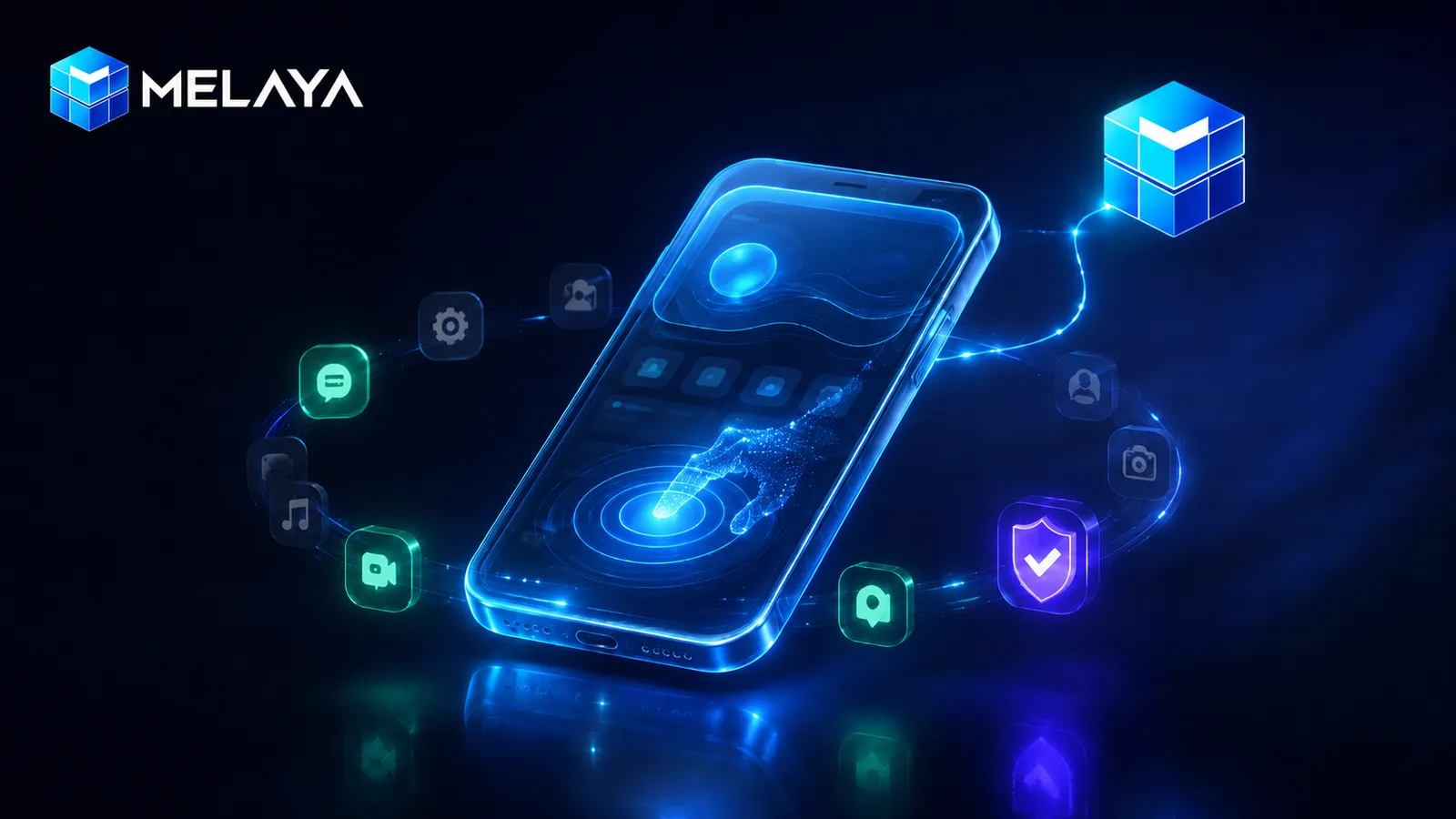
The useful version of an AI assistant is not the one that explains how to do the task. It is the one that can do the task, on a device you control, while you can see what is happening.
For years, capable agents have stopped at the edge of the phone. They could reason about an email, draft a reply, or map a workflow, but the last mile still belonged to a thumb: open the app, find the right field, type, check, submit.
Melaya Device Control closes that last mile on Android. A Melaya assistant can now operate the visible interface of a paired phone: open an allowed app, read its accessibility tree, tap, type, swipe, wait for the screen to change, and continue from what is actually there.
This is not hidden background automation and it is not unlimited access. The work is visible. The phone is paired to one user. Apps are allowed deliberately. Publishing pauses for an editable approval on the device. A run can be stopped from the phone or the web.
Ask once. Watch it happen.
The most natural entry point is the Melaya assistant. Ask for a mobile task in plain language:
“Open the app, find the conversation with Maya, draft a concise reply based on the latest message, and let me approve it before anything is sent.”
Before the turn starts, Melaya checks that a phone is paired. If it is not, the assistant takes you to setup instead of pretending it can continue. If the device is ready, the assistant receives the phone tools directly and begins the task in the same conversation.
You see a working state and a live tool stream. On the phone, a compact Melaya tile makes the active run obvious without taking over the screen. It collapses after the run begins, stays draggable, and keeps stop and approval controls within reach.
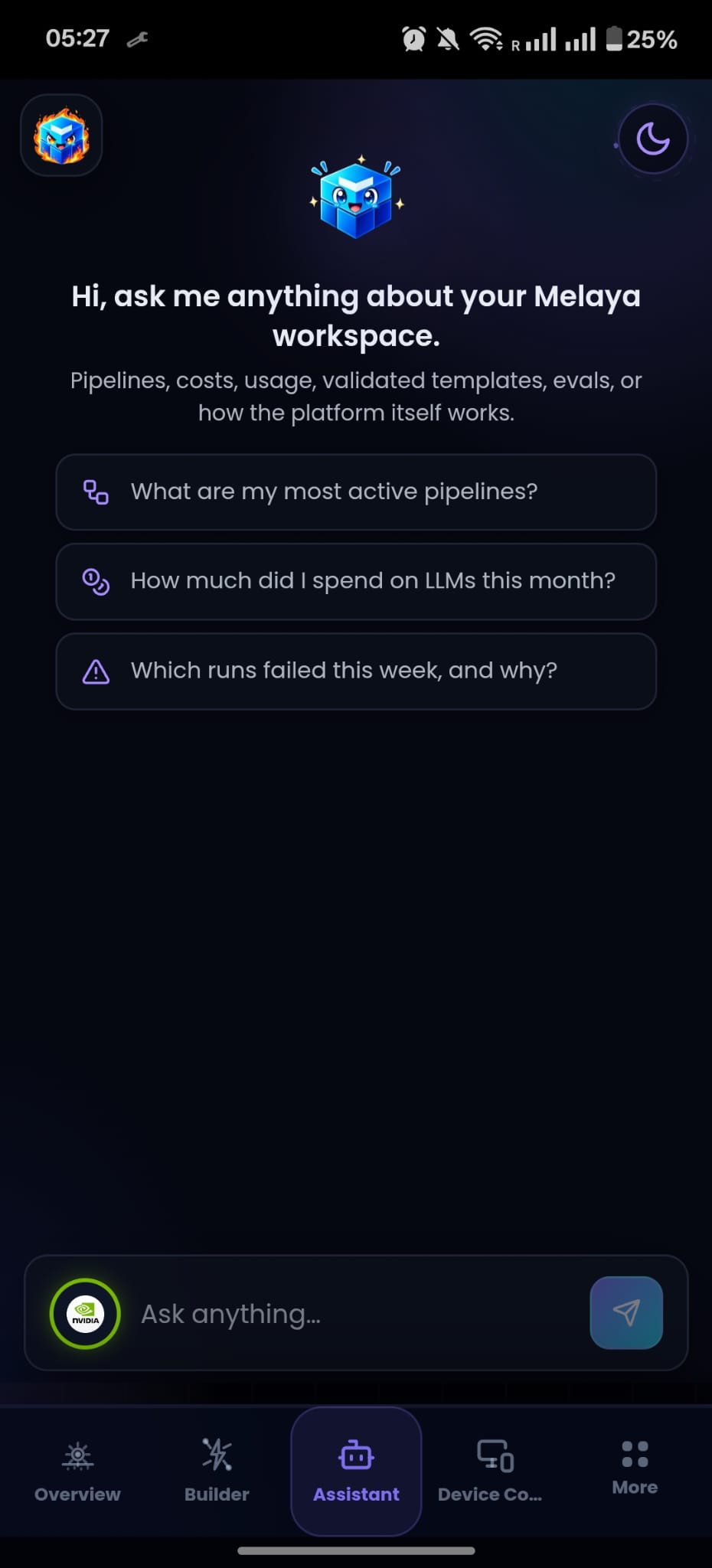
The important shift is subtle: you are no longer moving instructions from a chat into a series of manual gestures. The assistant carries the intent into the interface, then keeps checking the real screen before deciding what to do next.
You express the outcome. Melaya operates only the apps you allowed. The screen stays visible, and consequential moments return to you.
From one phone task to a reusable mobile AI agent
An ad hoc request should not force you to design a workflow first. That is why the assistant can drive the phone immediately, without launching a hidden phone-only pipeline or asking you to model every tap.
When the task succeeds, Melaya can offer to save the flow as a Device Control pipeline. The move from conversation to automation is opt-in:
- Ask for the task in the assistant.
- Watch the first run and adjust the instruction if the result is not right.
- Save the working flow as a reusable pipeline.
- Open it in Device Control to refine the agent, model, tools, schedule, and approval rules.
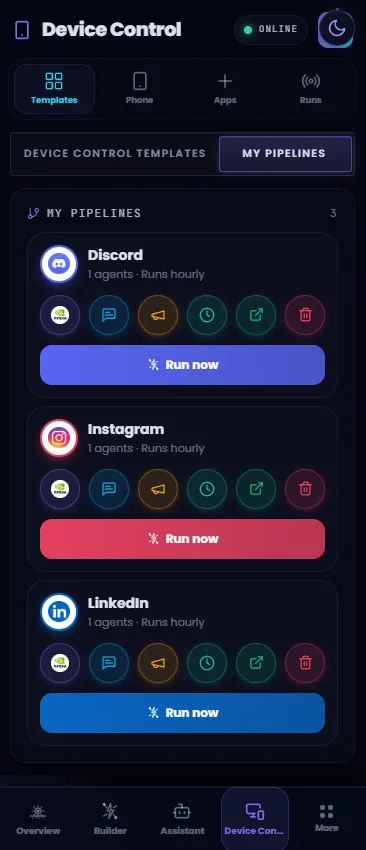
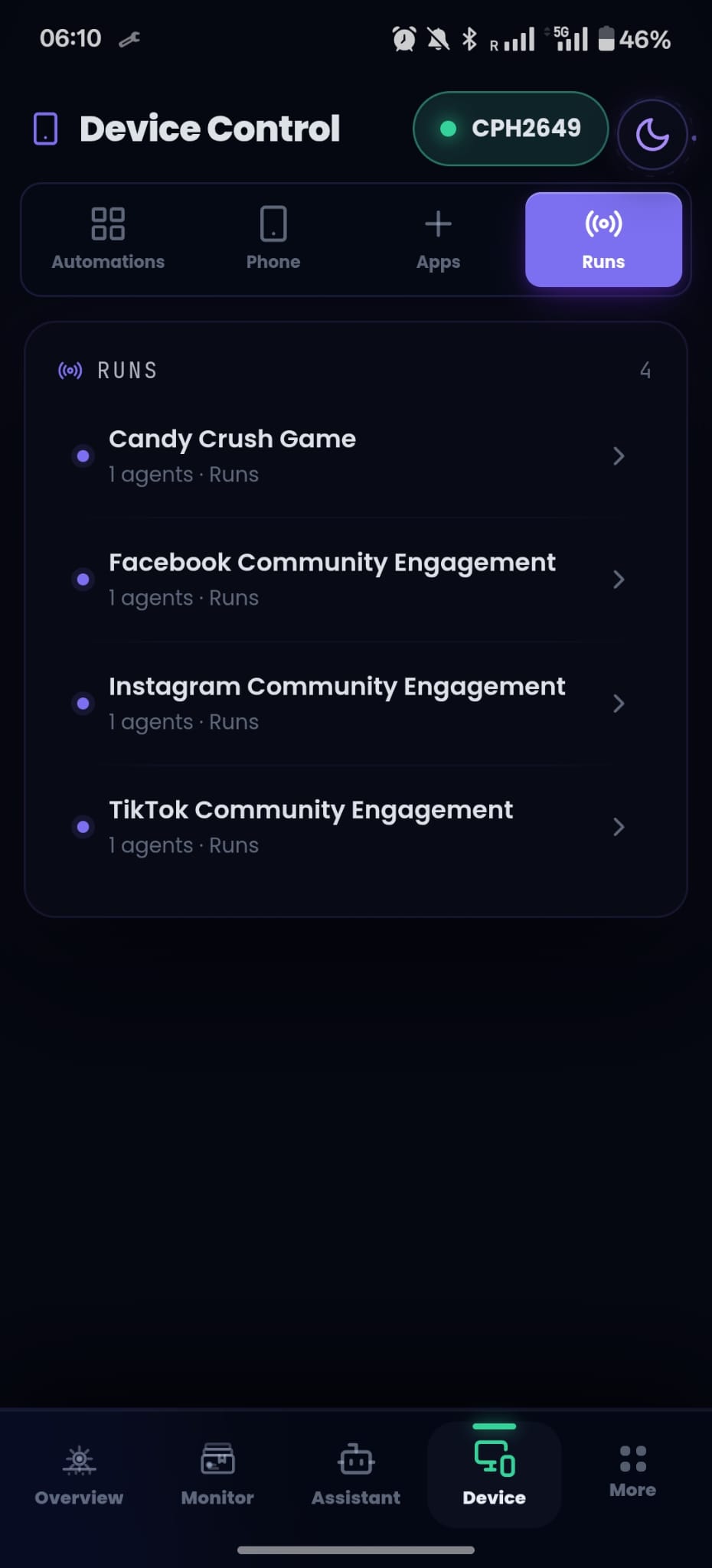
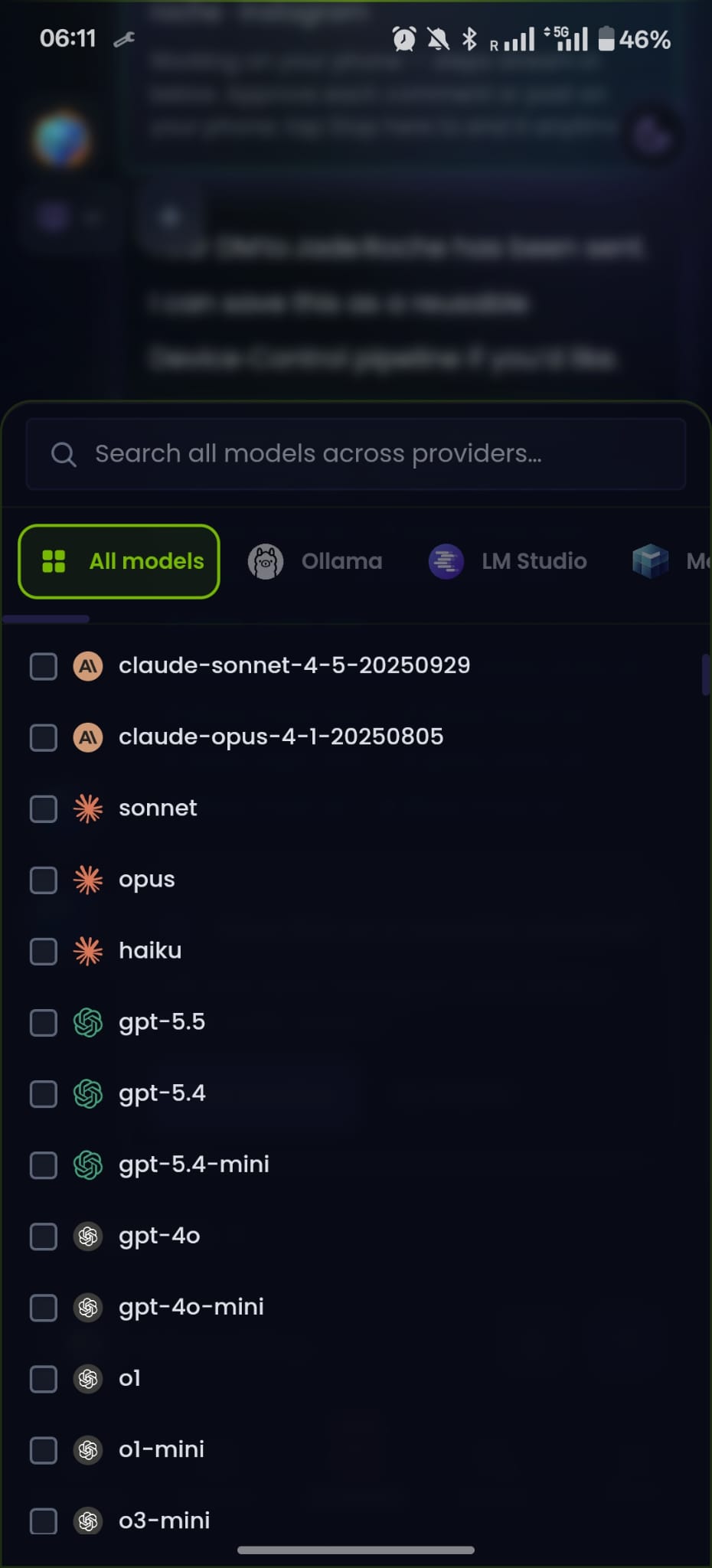
This is where Device Control and Agent Builder meet. The assistant handles the first messy, contextual run. The builder turns what worked into a repeatable operating system for your own work.
How an AI agent operates your Android phone
There is no second “mobile brain” inside Melaya. Phone actions are ordinary tools in the same agent runtime as research, documents, connectors, memory, and human approval. That keeps mobile work composable with the rest of a workflow.
- You state the outcomeIn the assistant or inside a Device Control pipeline
- The agent selects a phone toolOpen, observe, tap, type, swipe, wait, or run a short adaptive batch
- Melaya routes a bounded commandThe control plane binds it to your user and paired device
- Android executes it visiblyThe Accessibility service applies the local app policy before acting
- The fresh screen comes backThe agent continues from the result it can verify, not from memory
The executor supports the interaction vocabulary a person expects: visible text, stable element IDs, coordinates, gestures, text input, Enter, back, home, notifications, app launch, URLs, screenshots, and structured screen reads. For known short sequences it can use an adaptive batch, re-reading the screen between steps and stopping the moment an expectation is not met.
That last detail matters. A fixed macro assumes the interface has not moved. An agent should assume it might have.
App automation without an API: built for mobile UI as it really is
Phone interfaces are dynamic, localized, personalized, and constantly updated. A duplicated label can exist both on-screen and off-screen. A Compose text field can reject ordinary text injection. A feed can move while the agent is reasoning. A device can enter Doze and answer later than expected.
Device Control is designed around those conditions:
- Observe after acting. Successful interactive actions include the resulting screen tree after a short settle, so the next decision is grounded in the screen that now exists.
- Prefer what is visible. Text and ID matching choose an on-screen element before an off-screen duplicate.
- Handle difficult text fields. Android text input can fall back to clipboard paste when a field rejects direct input; non-Latin text and emoji remain usable.
- Abort adaptive batches early. Optional expectations can check the current app, visible text, or focused input after each step.
- Bring app knowledge to the run. Melaya can attach a maintained app playbook the first time a run encounters an app, covering stable navigation, known pitfalls, and canonical flows.
- Distinguish slow from offline. A recent device heartbeat prevents a delayed response from being misread as a disconnected phone.
- Act, then fetch again2 round tripsTwo command round trips for one action and its follow-up observation
- Melaya act-and-observe1 round tripThe successful action returns the updated screen in the same result
The comparison is architectural, not a benchmark claim. It shows why the experience can feel more direct: less waiting between action and evidence, and fewer opportunities for the agent to reason from stale state.
Permission is part of the product
Giving an agent a mobile interface creates a sharper trust problem than giving it another read-only API. The answer cannot be a paragraph in a prompt. The boundary has to survive a confused model, an outdated playbook, and a hostile screen.
Melaya therefore treats permission as an execution rule:
- A short-lived, single-use pairing flow links the phone to the signed-in user.
- The long-lived device token is stored as a hash by the server and can be revoked.
- Apps begin blocked; the user chooses which installed apps an agent may open and operate.
- The allowlist is enforced by the Android executor for interaction and screen capture, not merely by the web UI.
- The device cannot rewrite its own policy through an agent command.
- Live frames and active-run controls are checked against the owning user and device.
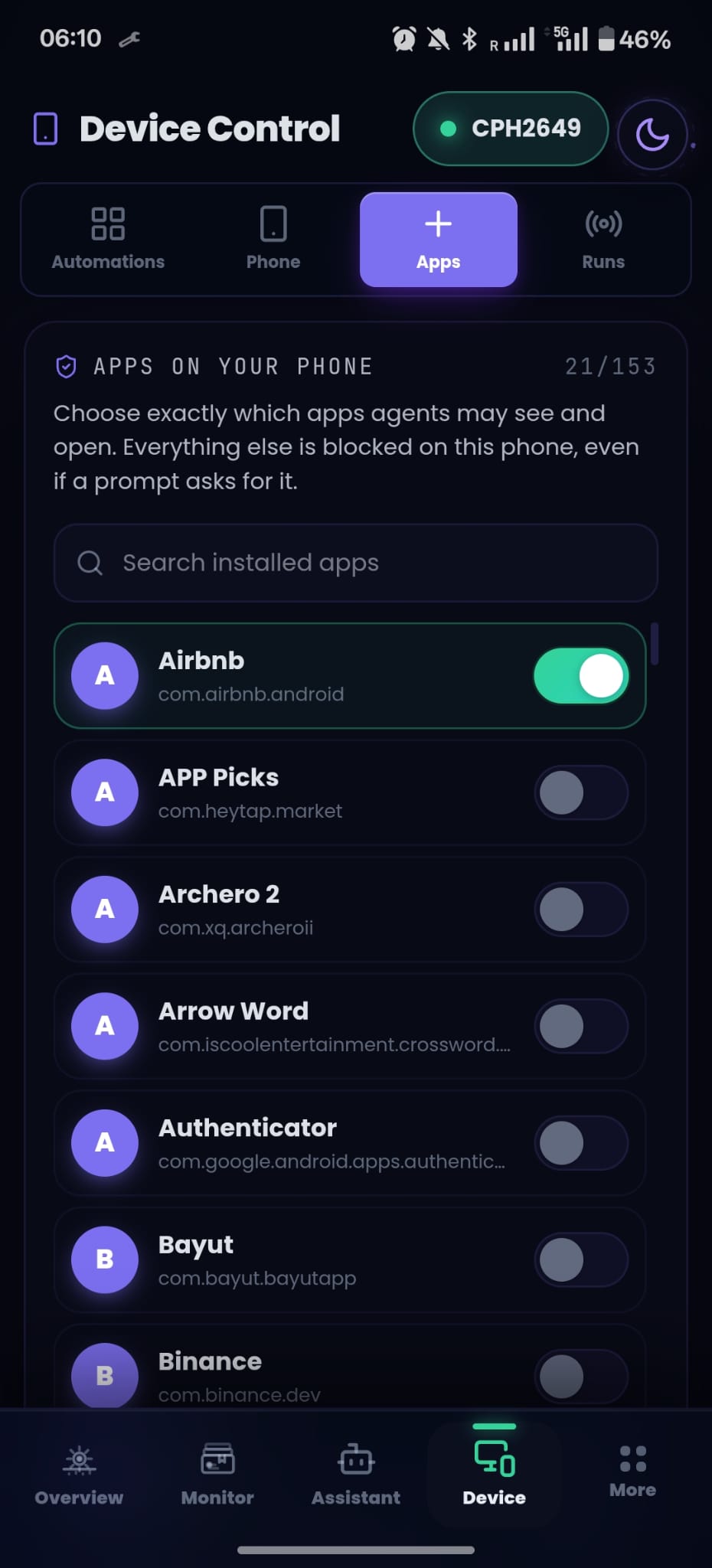
If the foreground app is not allowed, the action returns a clear app_not_allowed result. The agent can explain what happened and direct the user to the permission manager. It cannot talk its way around the check.
The live mirror follows the same philosophy. It streams to authorized viewers over a socket, drops old frames under pressure, and stops capture when nobody is watching. Screen data is treated as private operational data, not a telemetry stream to keep “just in case.”
The runtime underneath is locked down
Device Control gives an agent hands. Most useful phone workflows also give it reach into your other systems, a connector that reads a CRM, posts to a business account, or pulls an order. Those tools run on your real credentials, so the execution layer is hardened the same way the phone is: in the runtime, not the prompt.
- Every connector tool runs one per subprocess with an allowlist-only environment: only that service's credentials, never host secrets, and no shared state between tenants.
- The subprocess imports only the one service module it needs, not the full tool registry.
- The internal execution gate is fail-closed and timing-safe. No internal secret, no execution.
- Tool names are allowlisted by pattern and registry membership, and the service is derived from the tool prefix, not from anything the model says, so a model cannot name its way into another connector.
- Generic escape hatches like raw query, GraphQL, execute, eval, and shell are denied outright. The agent must use specific, declared tools.
- Credentials are decrypted server-side behind an ownership and editor gate, and are never sent to the client.
- Outbound requests pass an SSRF guard: HTTPS only, DNS resolved, with loopback, private, link-local, CGNAT, and cloud-metadata ranges blocked, fail-closed on anything unresolvable or internal.
- The agent's toolkit is bound to the services you selected and gated by your plan.
And like publishing on the phone, every connector write tool pauses for an approve, reject, or edit-arguments card in chat before it runs. The server re-gates the write on the decision, so a prompt-injected tool call cannot forge its way past the human. The theme is the same everywhere in Device Control: the boundary lives in the executor, not in a sentence the model is asked to remember.
Publishing stops at the human in the loop
Composing text and publishing it are not the same action.
When a gesture would submit created content, the Android executor intercepts it on the device. Melaya stages the action and shows an approval card containing the draft. The user can edit the text, approve it, or reject it. Only one publishing approval can be pending at a time.
This gate lives at the point where the gesture would occur. It does not depend on the agent remembering an instruction from earlier in the prompt. A template still asks for human approval around spending, deletion, account settings, and other sensitive changes; publishing receives the stronger on-device interception because it is a common, visible external side effect.
Automation can prepare the moment. The person should still own the consequence.
Live means controllable, not just observable
You are never automating blind. A run always shows two things: that it is happening, and how to end it.
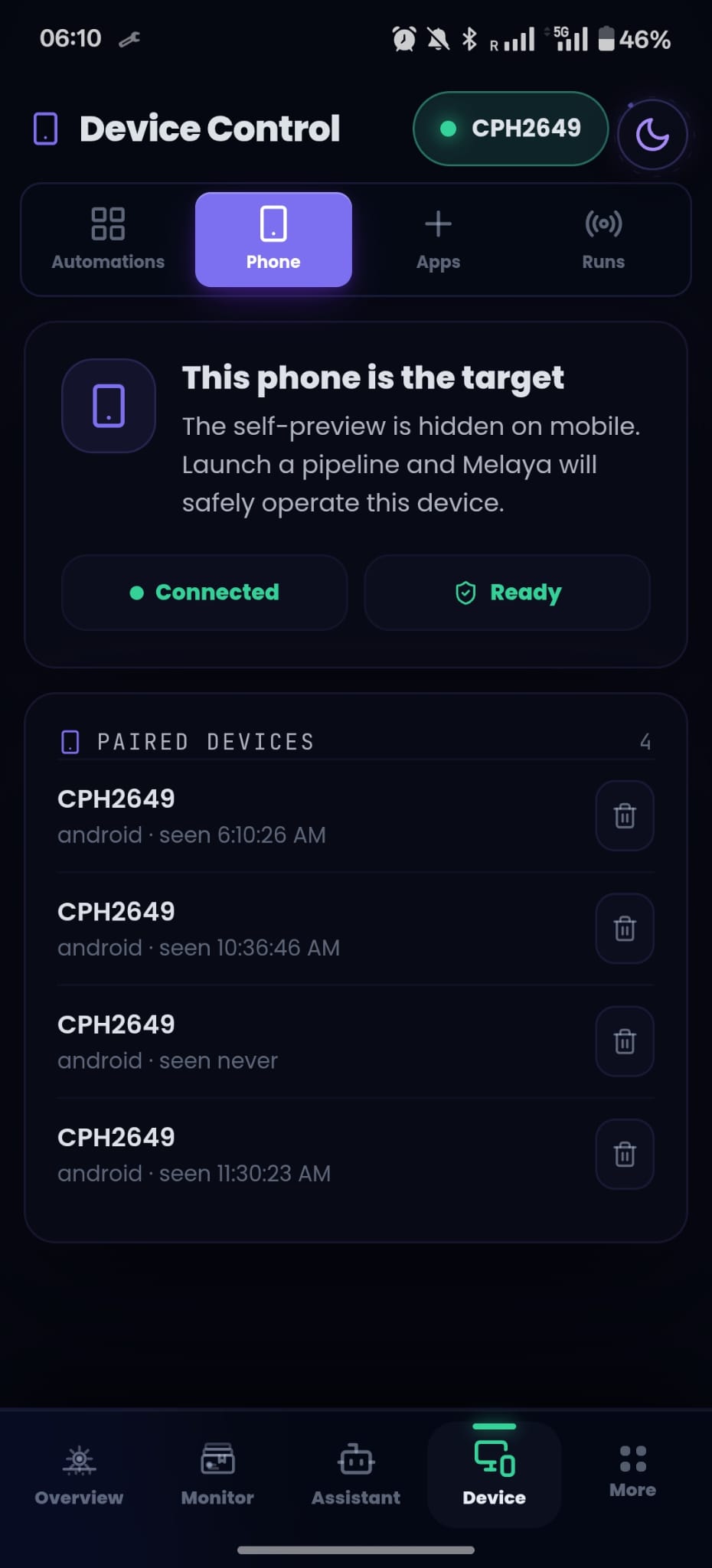
The desktop Device Control page shows the paired devices, connection state, app permissions, a live run feed, and a phone mirror that updates as the agent works. The Android app removes the redundant self-preview and focuses on the current state through a compact working tile: Melaya is working, waiting for approval, finished, or stopped. The tile collapses after the run begins, stays draggable, and keeps the stop and approval controls within reach.
And you can end a run whenever you want. There is no "let it finish" trap, no hidden background process to hunt down.
- A live run feed and phone mirror on the desktop show every action as it happens
- A working tile on the phone makes the active run obvious without taking over the screen
- One tap kills the active run, from the web or from the phone itself
- The phone can only stop the run registered to its own user and device, never someone else's
- A dead-man watchdog clears the working state and returns the phone to you if a cloud run goes silent
The goal is not a cinematic demo. It is an interaction you can interrupt on a Tuesday afternoon when the underlying app looks different than it did on Monday.
Setting up the Android AI agent is deliberately explicit
The first release is Android-first and distributed through Melaya Phone Setup. The setup flow asks for four clear decisions:
- Install and open Melaya on Android. The app contains the full authenticated Melaya workspace, plus the native services required for Device Control.
- Pair the phone. A short-lived QR code or deep link claims the device for the current account.
- Enable Melaya Phone Control. Android requires the user to enable the Accessibility service manually. On some sideloaded Android 13+ installs, the user must first choose “Allow restricted settings” from App info.
- Choose allowed apps. The policy is saved per device and reconciled back to the executor.
Android does not allow an app to silently enable its own Accessibility service. That friction is a platform security decision, and Melaya keeps it visible rather than attempting to disguise it.
New to this? The Melaya documentation walks through the whole flow with screenshots. See the Device agents section for pairing your phone, enabling Phone Control, choosing allowed apps, and running your first device agent.
Three ways to put AI phone automation to work
Once your AI providers are connected and your phone is paired, there is no single right entry point. Pick the one that matches the moment.
Just ask the assistant. Open the Assistant, in the browser or the Android app, and describe the task in plain language: "Open TikTok and respond to my unanswered inbox messages, and let me approve each reply before it sends." If a phone is paired, the assistant picks up the phone tools and starts working in the same conversation, streaming its progress as it goes. This is the fastest path, and it needs nothing beyond the sentence.
Start from a template. Melaya ships ready-made Device Control templates for common jobs like community engagement and inbox triage. Adopt one, point it at the apps you allowed, adjust the instruction to your voice, and run. A template is a working pipeline you can trust on the first day and refine later.
Build it in Agent Builder. For full control, assemble the workflow yourself on the canvas. The phone tools, open, observe, tap, type, swipe, wait, screenshot, and adaptive batches, are ordinary tools you grant to an agent alongside research, memory, connectors, and human approval. Choose the model per step, add a schedule, and set the approval rules. This is where a one-off phone task becomes a repeatable operating system for your work.
Whichever path you choose, the guarantees are the same: the run stays visible, publishing pauses for you, and you can stop it at any time.
What Device Control is, and what it is not
Device Control is scoped Android UI automation for a paired phone. It is a way to combine the breadth of mobile apps with the reasoning, memory, tools, evaluation, and workflow design already available in Melaya.
It is not invisible control of every app. It is not a reason to give an agent a blanket permission list. It is not a guarantee that a third-party interface will never change. And it is not permission to automate interactions a service forbids.
Good Device Control agents remain selective: observe before acting, use structured accessibility data when it is enough, take screenshots only when visual context is necessary, move at a human pace, stop on ambiguity, and summarize what changed.
The phone is no longer the last manual step
The web gave agents APIs. Device Control gives them a visible, user-governed path through the apps where daily work already happens.
That opens a practical range of workflows: helping prepare and approve community replies, moving information between an internal system and a mobile-only app, following a repetitive operational checklist, assisting with setup, or turning a successful one-off phone task into a reusable agent pipeline.
The interesting part is not that an AI can tap a screen. The interesting part is that it can do so inside a system that knows whose phone it is, which apps are in scope, what the screen became, when a person must decide, and how to stop.
Explore Melaya Device Control, follow the setup guide in the docs, or create your account and pair your Android phone from Device Control.
