
Plenty of real work still happens in desktop apps that have no API. An AI that can only answer questions leaves that work to you. Melaya Computer Control lets an AI do it in the apps you allow, one checked step at a time, and it is now in the Microsoft Store.
Melaya for Windows went live in the Microsoft Store on November 3, 2026. Search for "Melaya" in the Store app, or open the listing directly, and install it like any other Windows app. The package is signed by Microsoft, it updates through the Store, and it is free to install. A Melaya account is required, and the free Sandbox plan is enough to start.
The desktop app brings everything Melaya does to your computer, with one capability that only a desktop app can offer: Computer Control, an AI computer use agent that operates the Windows apps you switch on.
AI computer use agent for Windows: Melaya is now in the Microsoft Store
A computer use agent is an AI that operates software the way a person does: it reads a window, clicks, types, scrolls and checks the result. It is the missing piece when the work lives in a spreadsheet, a mail client, an ERP screen, a CRM or an in-house tool that was never built for integration.
Melaya Computer Control is built for that work. You give a task from the Melaya Assistant, a scheduled pipeline, or your own AI client over MCP. The agent works in the desktop apps you allowed, at the level you picked, and every step lands in a live timeline you can watch, approve or stop.
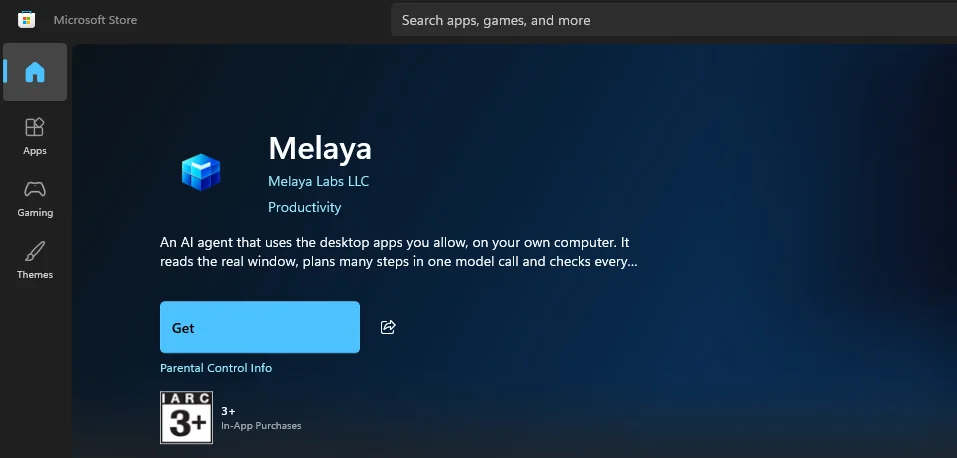
Install Melaya from the Microsoft Store: signed, trusted and updated automatically
The Store version is the simplest and safest way to install Melaya on Windows. Microsoft signs the package when it publishes it, so Windows does not show the "unknown publisher" SmartScreen warning that new unsigned installers trigger. Updates arrive through the Store like every other app.
The direct .exe installer remains available on the Melaya download page for people who prefer it. Until our own code signing certificate is issued, Windows SmartScreen flags that installer as unrecognized the first time you run it. If you want a clean install today, use the Store.
- Install from the Microsoft StoreSearch Melaya or open the listing, then Get
- Sign in onceThe sign-in opens in your browser and returns to the app
- Approve one consent screenThis computer joins your Melaya account
- Switch on the apps agents may usePick Off, View, Click or Full for each one
- Give it a taskFrom the Assistant, a pipeline, or your AI client over MCP
AI desktop automation without APIs: how Melaya reads and checks every window
Most desktop automation tools replay coordinates and hope the window has not moved. Melaya reads the window first.
Through Windows UI Automation, each window arrives as named buttons, fields, menus and tables, the same accessibility tree screen readers use. The agent acts on exact elements, then reads the window again to see what changed. If nothing changed, the step reports no effect instead of a false success, and the run can stop or re-plan rather than drift.
OCR and marked screenshots fill in only for apps that draw their own pixels. Where Windows allows it, actions go through the accessibility layer, so the cursor is not grabbed and the window does not jump to the front. When a step needs the foreground, the agent says so.
System One fast mode: many checked steps in one model call
Asking a large model to choose one click, wait, read the screen and choose the next click is slow and expensive. In fast mode the model reads the window once and plans a whole sequence of steps in one call. Melaya then runs each step in the app, checks the effect, and stops at the first surprise. The model looks at the screen again only when something unexpected happens.
The model should decide what the job means. Melaya should run the obvious steps, check each one against the real window, and hand back the moment reality disagrees with the plan.
Computer use permissions: Off, View, Click and Full access for every app
An AI that can use your computer must not get the whole computer by default. In Melaya, agents only see and touch the apps you switch on, at the level you choose for each one.
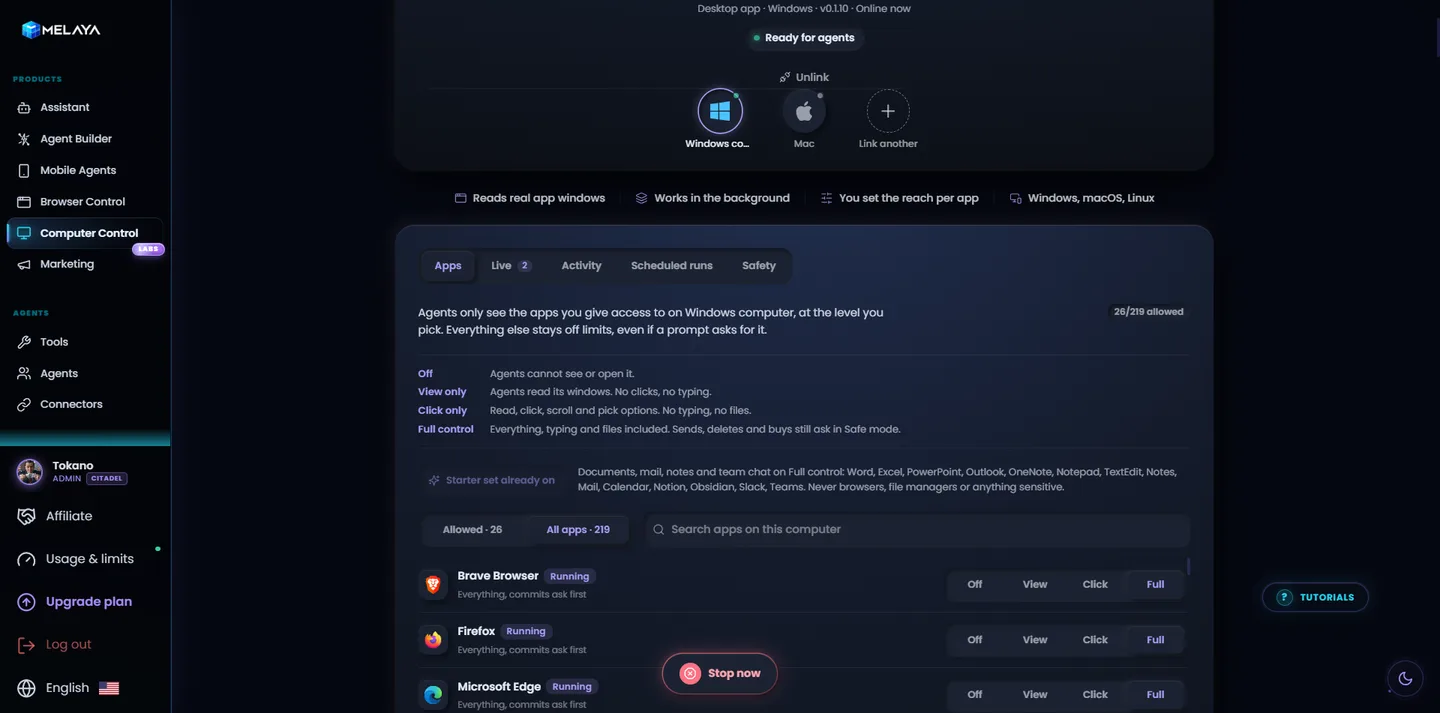
| Level | What agents may do |
|---|---|
| Off | Nothing. Agents cannot see or open the app. |
| View only | Read its windows. No clicks, no typing. |
| Click only | Read, click, scroll and pick options. No typing, no files. |
| Full control | Typing and files included. Sends, deletes and buys still ask in Safe mode. |
- Password managers, banking and trading apps, terminals, system settings and Melaya itself start switched off
- Agents never type into password fields, or anything that looks like one: one-time codes, card numbers, API keys
- Windows running as administrator are detected up front and reported, never silently clicked
- Sign-in, 2FA or a CAPTCHA hands the step back to you, then the run continues from a fresh read
Human approval for AI agents on the desktop: Safe mode, Stop and pause
Control has to work while the agent is running, not only before it starts.
In Safe mode the agent asks before it sends, deletes, buys or installs, in the desktop app and on the web. A global Stop shortcut, a Stop button and Stop from the web end every run on the computer at once. And the moment you grab the mouse or touch the keyboard yourself, the run pauses on the spot. You always get the computer back first.
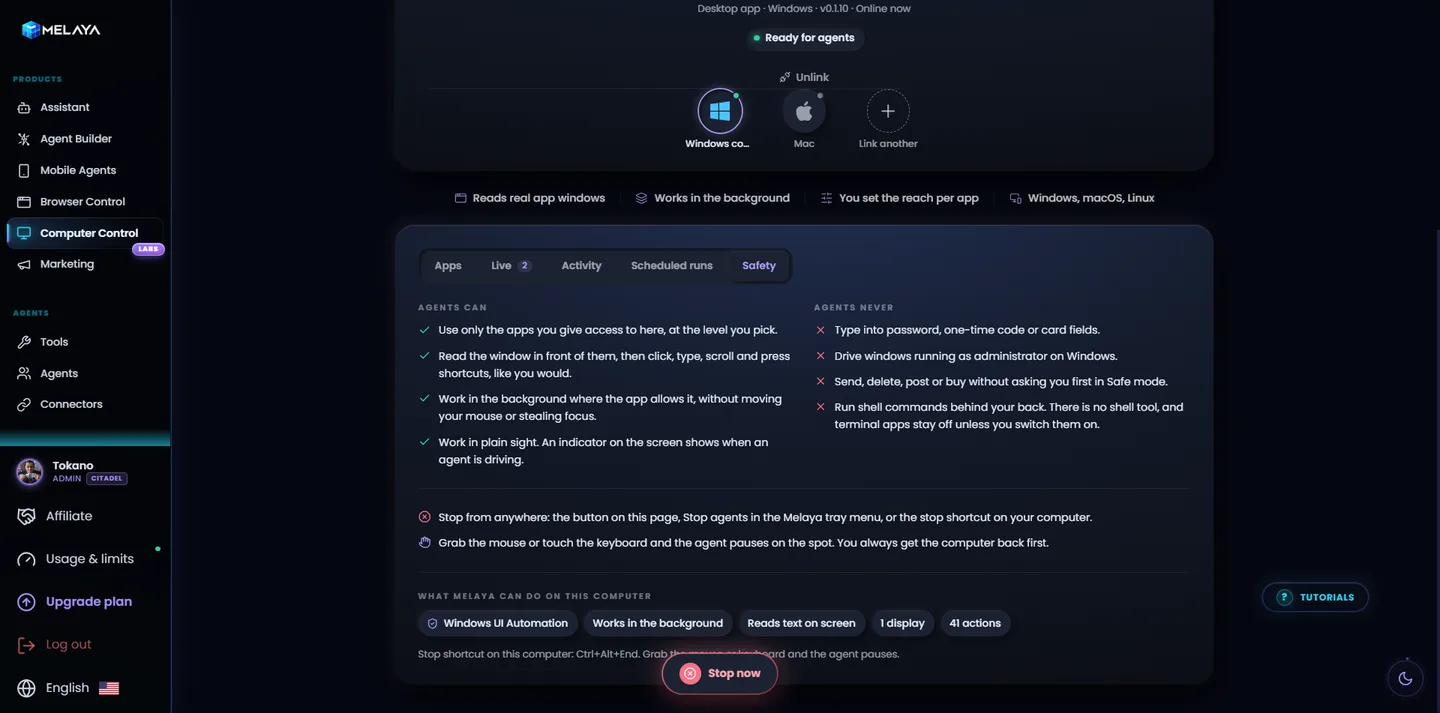
Computer Control acts from your request, a pipeline you configured, or a trigger you authorized. It does not decide to act on its own. You remain responsible for the terms of the apps you let it operate.
Computer use precision test: the Mona Lisa in one model call
We wanted a demanding, visual and unforgiving test of precision, so we asked Computer Control to paint the Mona Lisa in Microsoft Paint.
The final run planned the painting offline, then executed it through Paint as one call: 1,786 steps and 17,386 brush and pencil strokes, with 288 colour picks from 40 of Paint's swatches, in about eight and a half minutes. It was filmed on the desk with nobody on the mouse, and the run is built to pause the moment someone touches it, then resume where it stopped.
A painting is not a business process, and that is the point. If an agent can place seventeen thousand strokes exactly where the plan says, then filling a table, entering a batch of invoices or walking a form row by row is well within reach. The same film plays at the top of the Microsoft Store listing.
Paint it yourself: the open source paint-artist skill
The painter behind the film is public. paint-artist is an open source agent skill in the Melaya MCP repository on GitHub. Give it to Claude Code (or any AI client that reads skills), connect the Melaya MCP server, and your own agent paints in Microsoft Paint through Computer Control.
The skill does the art in code, from your picture, with no image generator involved. It picks a palette from Paint's own colours, plans every brush and pencil stroke, simulates the result with Paint's real tools so you see the painting and its duration before anything moves, then paints the whole thing in one call and scores the live canvas against the plan.
- Reproduce any PNG or JPG stroke by stroke, faces painted with extra detail
- 17 styles: impressionist, Van Gogh, pointillism, watercolour, pencil sketch, ukiyo-e, pop art, cubism, Klimt, Mondrian, pixel art, sumi-e and more
- Borrow the style of a reference painting, or compose a new landscape, still life or portrait
- Style grids: one picture split into cells, each cell in another style
- A preview of the finished painting and its duration before Paint is touched
Install the paint-artist skill from https://github.com/melaya-labs/melaya-mcp/tree/main/skills/paint-artist and the Melaya skill next to it. Then paint the bundled Mona Lisa in Microsoft Paint in the van-gogh style through Melaya Computer Control. Show me the preview and the estimated time before you start.
Fast mode, batch and stored plans: AI desktop automation explained simply
Every tool call an AI agent makes costs time: the model thinks, the request travels, the screen is read again. Clicking one button per call is fine for three clicks. For three hundred rows it is painfully slow. Melaya gives agents four ways to act, from careful single steps to thousands of steps in one go. Here they are, explained like you are five.
| Mode | Like… | Best for | How much per call |
|---|---|---|---|
| Single actions | Telling a friend one move at a time: "click Save", then "what do you see now?" | New or unknown screens, sign-ins, file dialogs, any step whose result decides the next one | One action |
| Fast mode | Handing over a short to-do list with the names of the buttons: "click New, type the name into Name, press Enter" | Steps you can name from what is on screen, forms, the same flow for every row of a list | Up to 500 steps on the computer, 100 in the browser or on the phone |
| Batch | A recipe with exact measurements: exact fields, exact values, exact positions | Lots of precise steps: data entry, a table of records, many files, drawing | Up to 5,000 steps and 10 minutes |
| Stored plan | The recipe written down once and kept in the kitchen, so you only say "make recipe 12" | Long or repeated jobs: the plan is saved, the call only names it, and it starts at once | The cap of the tool that runs it |
In fast mode Melaya finds each button again by its name on the live window, checks that the step worked, and stops at the first surprise. A batch is even faster because every target is already exact, and it still stops at the first step that fails, telling you which one. Either way, Melaya runs the steps on your computer without asking the model again for each click.
The one-call method: how the Mona Lisa was painted
The same five moves work for a painting, a 300-row spreadsheet or a web form you fill for every customer:
- Read onceLook at the window, find every field or measure the canvas
- Plan in codeWrite the whole step list from your data with a small script
- PreviewHow many steps, how long, background or foreground, what needs approval
- Run in one callSave the plan and run it as one batch or fast call
- Check and resumeCompare the result with your data, restart from the failed step only
Two details make it safe for real work. A plan starts with a check that it is in the right window, so a plan started in the wrong place stops at step one with nothing done. And when a step fails, or you grab the mouse, the run continues from that step, never from the top, so nothing is entered twice. Steps that send, delete or buy still wait for your approval inside a plan.
Typing and filling fields usually runs in the background, without moving your cursor. Drawing and keyboard shortcuts need the window in front, and the preview tells you which one you get.
Using Melaya Computer Control, enter the 40 rows of orders.csv into the open spreadsheet. Read the window first, build the steps in code, show me a preview with the step count and time, then run it as one stored plan and check every row against the file.
Audit trail for desktop AI agents: every action logged live
Every action an agent takes on your computer appears in the Activity tab, newest first, as it happens: the tool, the app, whether it ran in the background or the foreground, and the result. Runs started from a pipeline also keep a replayable record of every tool call in Melaya.
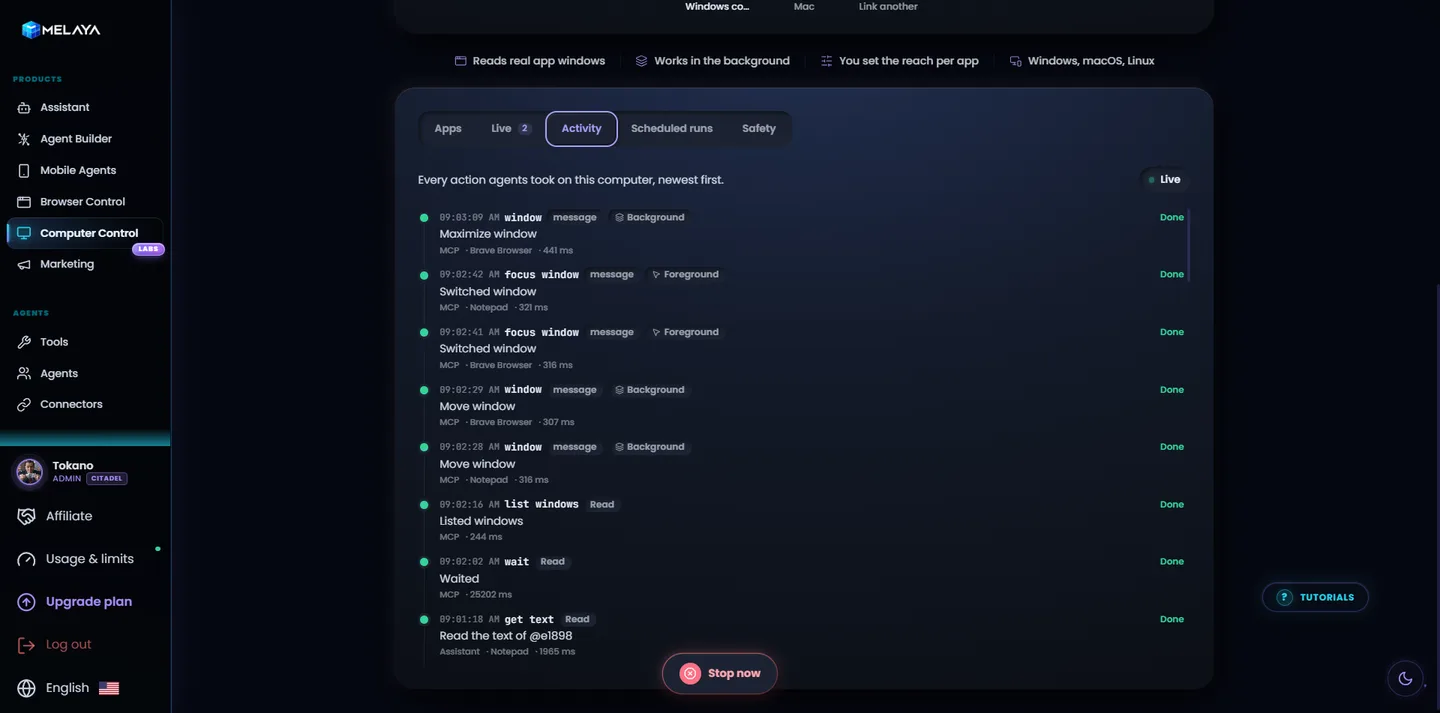
That record matters when an agent works in finance, operations or support tools. You can see what was read, what was clicked and what was typed, instead of trusting a final message.
Use your own AI: Claude Code, Codex, GitHub Copilot, Ollama and MCP clients
Melaya does not lock you into one model. Pick from 50+ cloud and local AI providers, or use your own Claude Code, Codex or GitHub Copilot subscription. The desktop app launches Claude Code, Codex, GitHub Copilot, Ollama and LM Studio in one click if you already have them installed. What the agent reads from the apps you allowed goes to the model you picked. Pick a local model and it stays on your machine.
Prefer to stay in your own AI client? The Melaya MCP server exposes Computer Control to Claude Code, Codex, Cursor and other MCP clients, with the same app levels, approvals and Stop controls.
Connect the Melaya MCP server at https://api.melaya.org/mcp as a remote HTTP server named "melaya" and finish the sign-in. Then use Melaya Computer Control on my Windows computer: open Notepad, write a short weekly update with three things we shipped and two next steps, and leave it unsaved so I can review it.
The same agents also drive your browser and your Android phone, so one pipeline can read a CRM in the browser, update a desktop spreadsheet and check a mobile app in the same run.
Windows, Linux, macOS and virtual machines: where Computer Control runs
| Platform | How to get it |
|---|---|
| Windows 10 or 11 | Microsoft Store (recommended), or the .exe installer from the download page |
| Linux | AppImage, .deb or .rpm from the download page |
| macOS | Coming soon |
| Servers and virtual machines | The terminal runner with Computer Control enabled |
On a headless server or a virtual machine, start the Melaya runner with Computer Control enabled:
npx @melaya/runner --computer